
The wardrobe, from inside the wardrobe.
Scan one QR code on the Settings page and your phone is signed in. No password to type with an armful of tutus. Search, scan a tub, add a costume with a photo, all standing in the costume room.
Works in any phone browser too. The app adds a built-in label scanner.
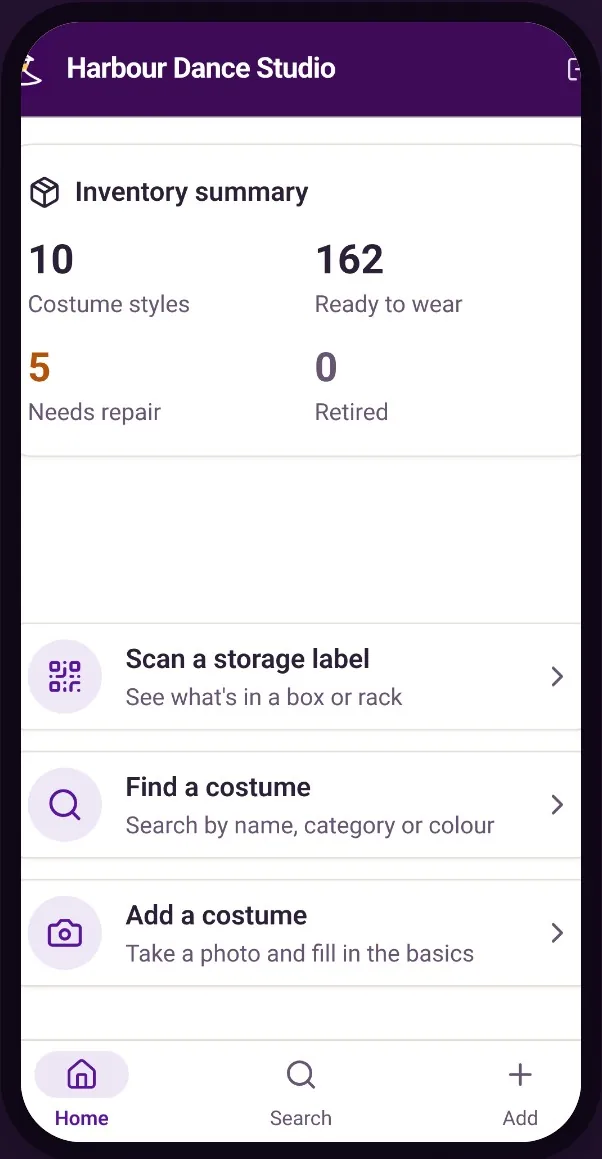
Four things a phone does in the costume room.
Everything else stays on the big screen at the desk.
- Search
- Type a name, colour or category and see what's in stock, by size. Tap through to the costume.
- Scan a label
- Point the phone at the QR label on a tub or rack. The app shows what's meant to be in it, so a wrong tub gets caught on the spot.
- Add a costume
- Photograph it, name it, pick a category, enter the sizes. Done before it's back in the tub.
- Check and fix stock
- Open a costume, see every size and condition, tap plus or minus. The desk sees the change straight away.
No login for the costume mum.
The studio signs a phone in by scanning a QR code from Settings, and that session has its own expiry. Nobody has to share the studio PIN or set up an account for someone helping out for one concert.
Staff who need more get their own email and password sign-in with the permissions you choose.
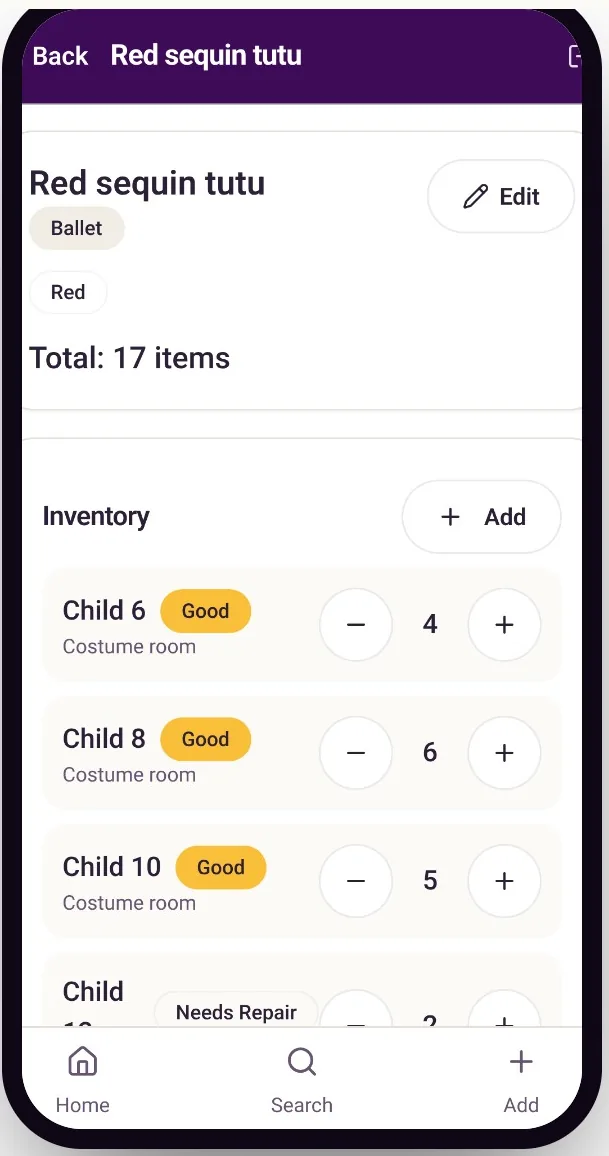
What stays on the laptop.
Routines and planning
Assigning costumes to routines, Find Costumes, stock orders and the shop are desk jobs. The full app works on a tablet as well.
Stocktakes
Start a stocktake at the desk, count on the phone in the room, then apply the differences from the desk when you're happy with the numbers.
Print six tub labels and go scan them.
Fourteen days free, and the phone side is part of the plan.